
This blog post outlines how to convert a thin-provisioned OS-disk in OLVM (version 4.5) to a preallocated disk with minimal downtime.
Issue
During the patching of one of our customer environments (opatch apply on GI…), the current ssh session suddenly froze and wasn’t responding anymore.
After checking the VM in the oVirt Engine web interface, a „Paused“ sign was visible next to the VM.
A forced stop and start of the VM was required to be able to re-connect to the virtual machine.
Once checking the VM and the engine.log, an error message was shown/reported:
„VM <VM name> has paused due to no Storage space error.“
The storage domain had sufficient free space; however, the VM’s disk could not be extended.

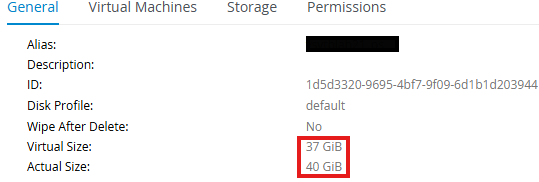
The issue itself was reproducible very easily by simply writing with „dd“ to the OS-disk until an extension would be required. Even writing smaller files up to 512MB caused the VM to pause.
After some research I found the following MOS-note with an explanation and possible way to fix it:
(KB226122) OLVM: VM Has Been Paused Due to Storage Space Error
If the VM (or its application) is writing bulky data (>1GB) to virtual disks continuously, the VM may have to be paused multiple times before it can be resumed.
Resolution
As we needed a quick solution for this VM, we decided to change the disk type of the OS-disk from thin-provisioned to „preallocated“ in the Storage Domain.
Important, a downtime is required for this, and it takes some minutes.
- Shutdown the VM (& Rename)
- Create a snapshot of the OS-disk within the OLVM engine

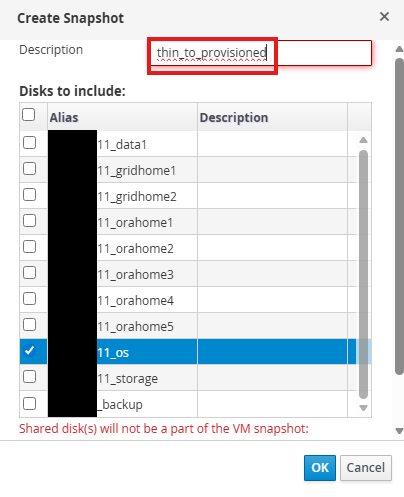
- Click on the VM -> Snapshots -> Select the snapshot -> Clone; select „Preallocated“ in the system tab
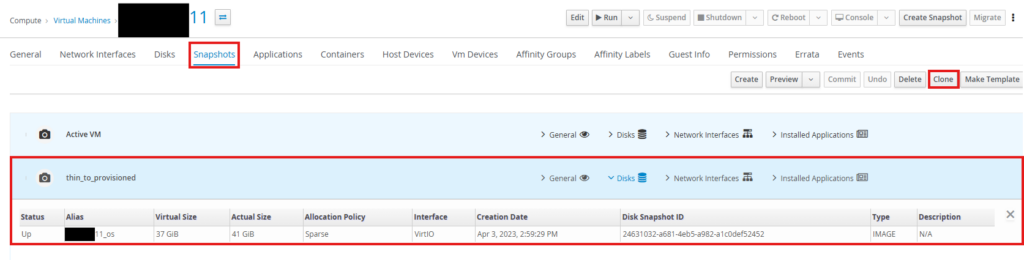
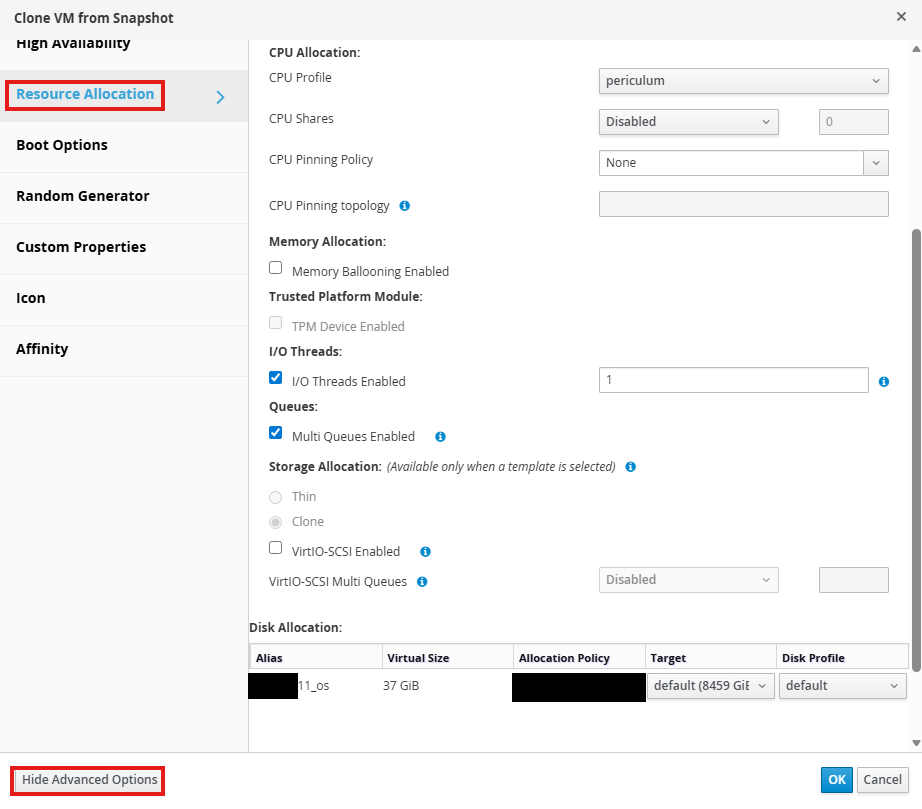
- (re-attach direct attached LUNs to the new VM and) Start VM
- Verify that all the NICs in the VM still have the same name (could be changed as it was in our case)
- Verify GI status after startup
- Restart VM to to make sure everything works even after a restart
- Detach all direct attached LUNs from source VM and delete VM
- Great Success!
Conclusion
As described in „(KB226122) OLVM: VM Has Been Paused Due to Storage Space Error“, it would be possible to change following parameters in the vdsm.conf so bulky data (>1GB) on the OS-disk may not lead to paused/halted VMs:
<code> |
[irs] |
volume_utilization_percent=25 |
volume_utilization_chunk_mb=2048 |
</code> |
I do not recommend this approach and instead suggest:
- Use preallocated disks for OS or any disk which could be prone to „bulky data (>1GB)“ writes in general.
- Convert the disk to „preallocated“ as it is much faster than multiple restarts, so the underlying LVM is extended properly.
Reference
(KB226122) OLVM: VM Has Been Paused Due to Storage Space Error
If the VM (or its application) is writing bulky data (>1GB) to virtual disks continuously, the VM may have to be paused multiple times before it can be resumed.