
How to Renew Certificates in OLVM 4.5
Managing certificates in Oracle Linux Virtualization Manager (OLVM) is an important part of maintaining a secure and reliable virtualization environment. Certificates are used to secure communication between the OLVM engine, hosts, and connected services, making timely renewal essential to avoid trust issues, service interruptions, or expired certificate warnings.
In OLVM version 4.5, renewing certificates is a straightforward process when the correct steps are followed. This guide walks through the certificate renewal procedure in a clear, step-by-step manner, helping administrators refresh existing certificates with minimal downtime and ensure continued secure operation of their OLVM environment.
The recommended approach for certificate renewal is to first renew the OLVM Manager certificates, followed by the certificates on the KVM hosts. It is also important to note that this procedure applies to OLVM version 4.5, which is currently the latest supported release. Versions 4.3 and 4.4 no longer receive bug fixes or security updates.
In OLVM version 4.3 and in certain 4.4 releases prior to 4.4.10.7-1.0.24, running engine-setup –offline did not renew all certificates automatically. Some certificates, such as ovn* and vmconsole*, had to be renewed manually.
Verify Certificates and Renew the OLVM Manager Certificate
We will use the OlvmKvmCerts script provided by Oracle to check the expiration dates of the certificates. The script can also be used to renew the certificates automatically. However, I prefer the manual approach because it provides greater control over the renewal process.
Check the certificates expiration date:
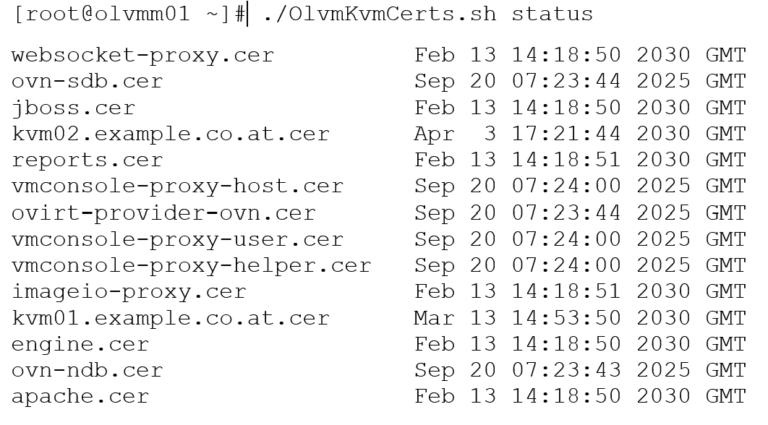
As shown in the output, several certificates were expired. The script can also be used to check the certificates on the KVM hosts. However, regarding the script, please review the referenced documentation carefully, as in this case only the OLVM Manager certificates were affected.
Create a backup of the current certificates
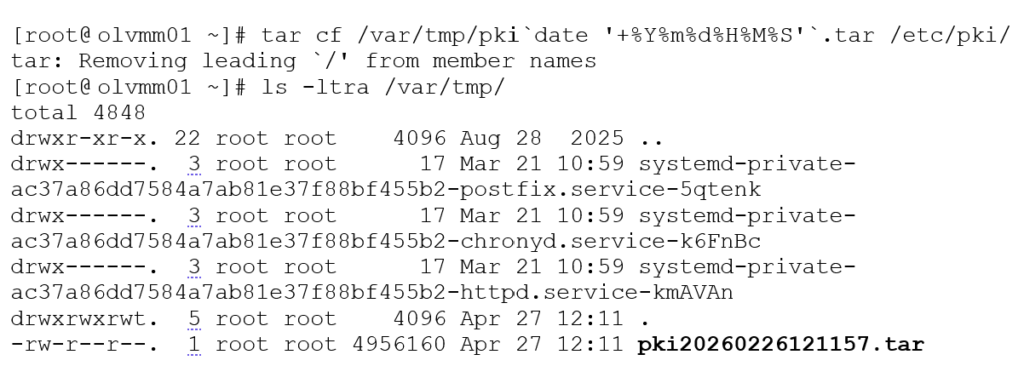
Now that a backup has been completed, the certificate renewal process can begin. Before proceeding, it is important to determine whether the environment uses a standalone engine or a hosted engine.
A standalone engine runs on a separate virtual machine, while a hosted engine runs on one of the KVM hosts. In this case, the environment uses a standalone engine. If a hosted engine deployment is in use, refer to the referenced documentation for the appropriate renewal procedure.
Renewing the OLVM Manager certificate
Next, run the engine-setup –offline command. During the process, several prompts will appear, including an option to create an additional backup. This is recommended, as the backup file is small and created quickly.
The –offline argument instructs the setup process to skip online package operations.
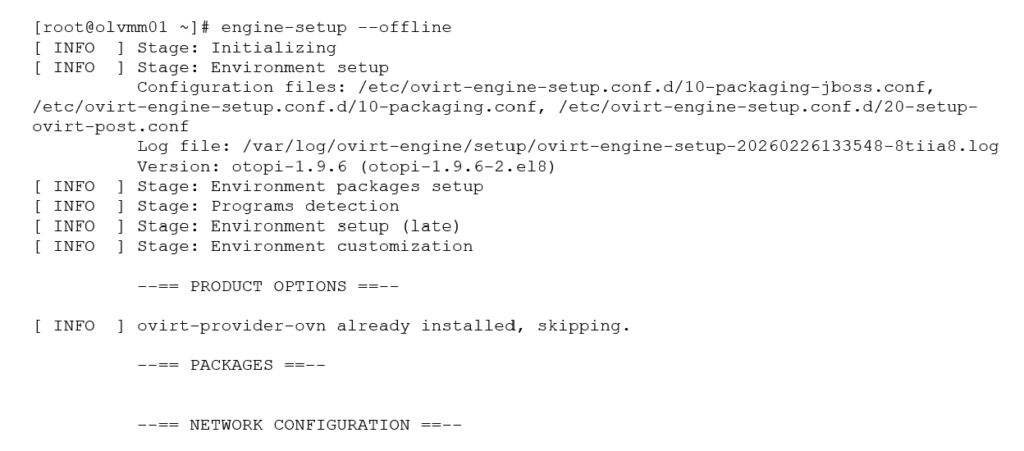
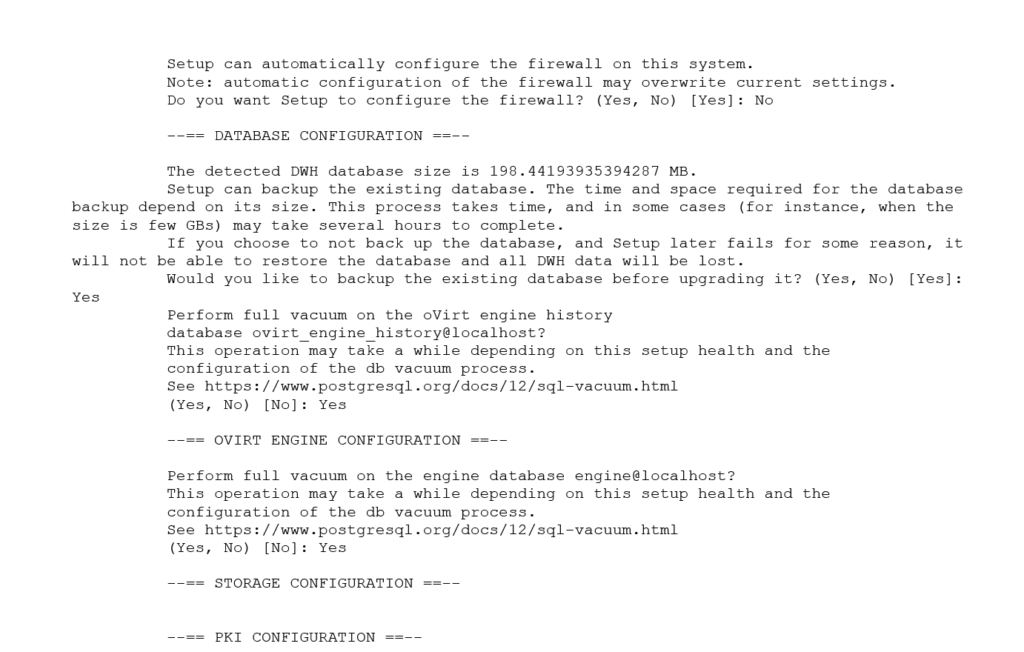
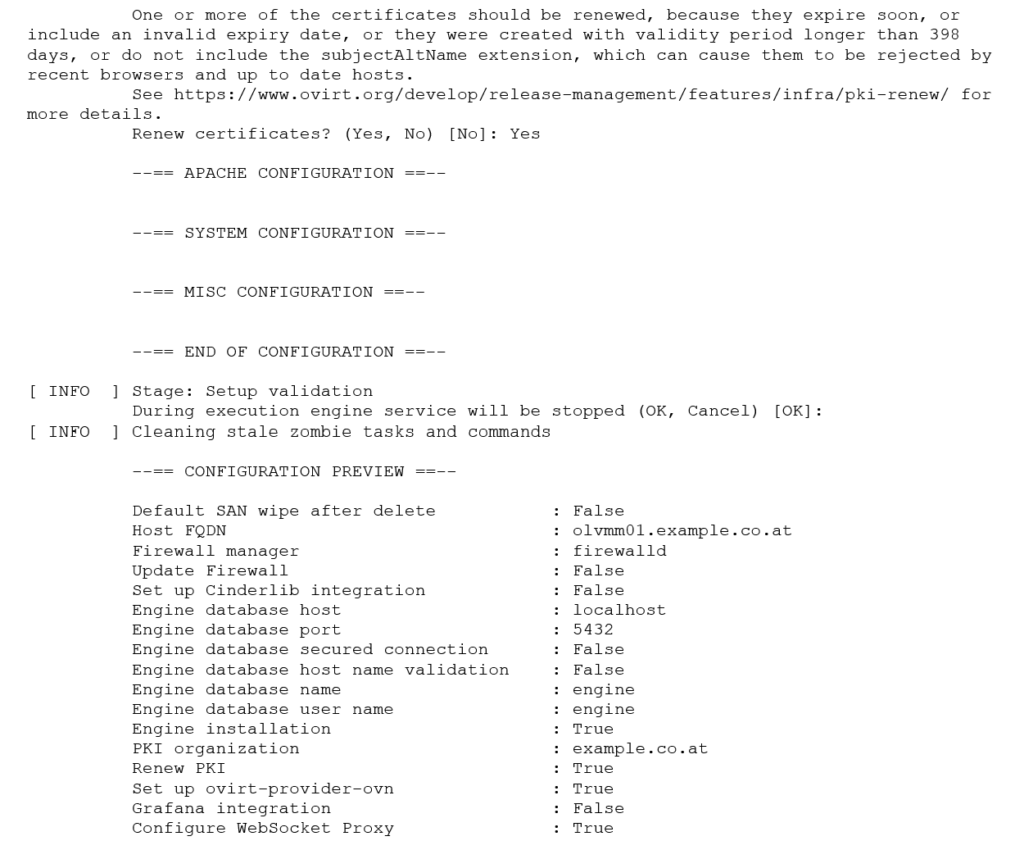
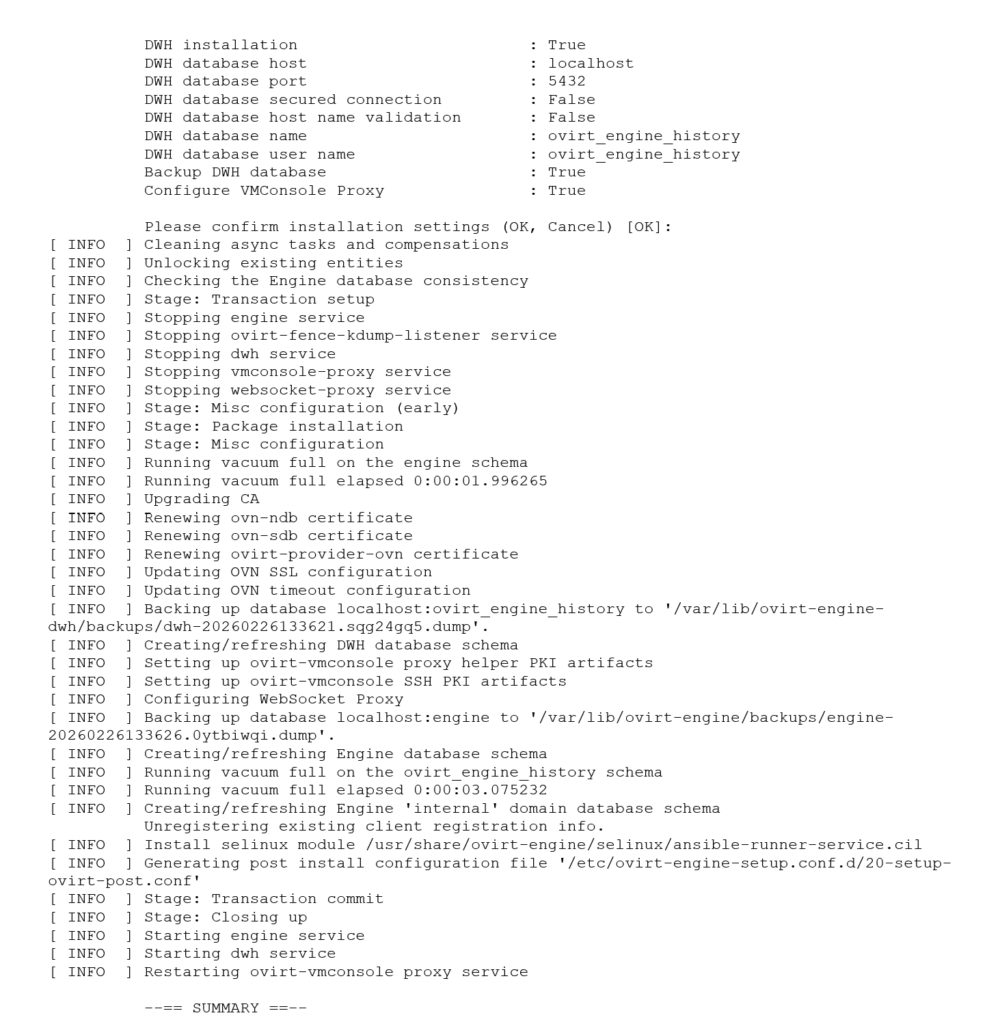
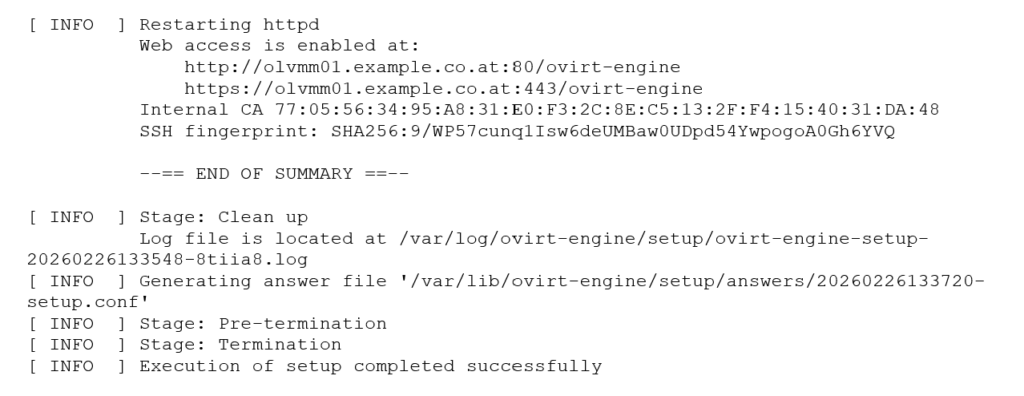
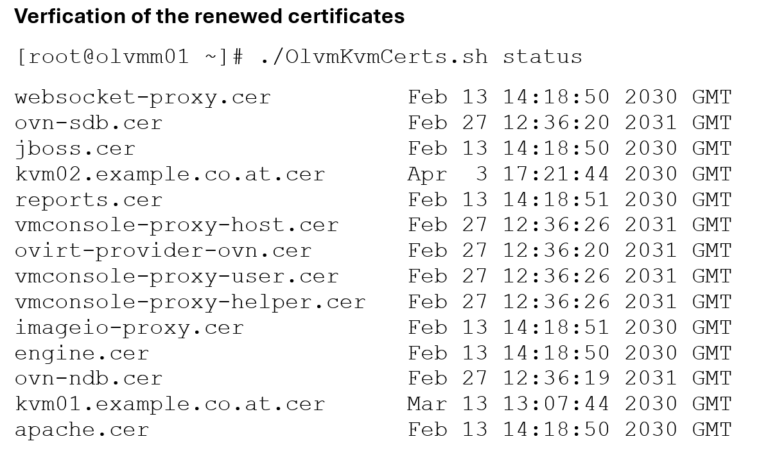
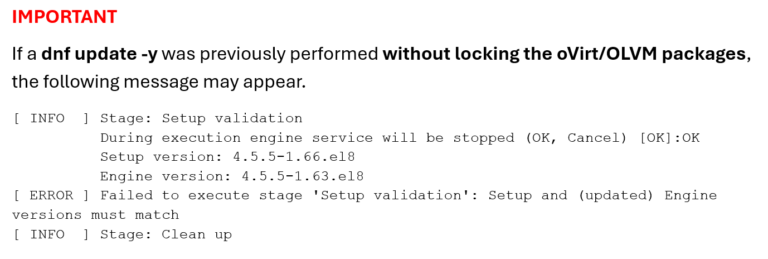
This indicates that the installed setup packages are newer than the currently configured OLVM Engine version.
In this situation, the recommended approach is to complete the OLVM Engine upgrade process so that the engine matches the installed package version, which is typically the latest available release. During the upgrade, the setup process will also prompt for certificate renewal.
To proceed with the engine upgrade, run engine-setup without the –offline argument.
Renewing the KVM Host certificates
For KVM host certificate renewal, refer to the Oracle documents listed below. There are two supported methods: renewing the certificates through the OLVM web interface or using the OlvmKvmCerts script, which can also be used to check certificate expiration dates.
It is important to ensure that all certificates are renewed before they expire. In older releases, such as OLVM 4.3 and some earlier 4.4 versions, if a KVM host certificate expired and the host became unresponsive, the certificates had to be renewed manually. According to Oracle documentation, the Engine software should first be updated to the latest supported 4.4 release (4.4.10.7-1.0.32) before proceeding with certificate enrollment.
If the OLVM Manager certificate expires, the OLVM web UI becomes inaccessible once the Apache certificate expires. In addition, GUI-based operations such as opening the VM console, image uploads, and other management tasks will no longer function when engine-side certificates have expired.
If a KVM host certificate expires, the host will move to a Non-Responsive state. As a result, the host can no longer be managed through OLVM, and the virtual machines running on that host may also be impacted.
The following articles were used as references for this guide:
- OLVM: How to Renew SSL Certificates that are Expired or Nearing Expiration (KB524781)
- OLVM: OlvmKvmCerts – Script to Check or Renew Hypervisor Certificates (KB370896)
- OLVM: ovn and vmconsole-proxy Certificates are Not Renewed by Running the engine-setup Command (KB262256)